SUMMARYGet started in five steps
- Download Neto from the App Store or Google Play.
- Answer the sign-up questions (including your currency) and create your account.
- Add your accounts with their current balance, entered by hand.
- Log each expense with the + button or, on iPhone, by tapping the back of your phone twice.
- Check your net worth on Home and your numbers in Analytics.
What Neto is
Neto is an iPhone and Android app for keeping track of your money by hand: your accounts, your spending and income and, if you like, your investments, possessions and debts. From that it shows you your net worth (what you own minus what you owe) and where your money goes each month, with no bank connection.
More than 16,000 people use it in 121 countries. It comes in 6 languages and supports 62 currencies.
Getting started
Setting it up only takes a little while. This is the order the app itself follows.
- Download the app. It is on the App Store for iPhone and on Google Play for Android. It is the same app on both.
- Answer the sign-up questions. Before asking for any account, Neto asks a few questions: your alias (it is unique, and it is how the app greets you), your goal, your currency and whether you want reminders. For the currency it suggests your phone's; you can pick any of the 62 and change it later in Settings > Preferences > Currency.
- Create your account. On iPhone you can use Continue with Apple (and hide your email if you wish), and on Android Continue with Google. Email works on both too: alias, email and a password of at least 8 characters. You won't get a verification email, but use a real address, because it is the only way to recover your password. Afterwards you will see the Neto PRO screen once: you can close it and carry on for free.
- Add your accounts. In the Accounts tab, New account: name, current balance, currency and colour. There are no account types; the name says it all ("Salary", "Savings", "Cash", "Card"). You enter the balance yourself and it can be negative, for a credit card for example. Each account can have its own currency, and Neto converts totals into your main currency using exchange rates updated daily. You can create as many as you like.
- Add your investments PRO. In the Investments tab, add one and choose the type (stock, ETF, fund or crypto). Search by name, ticker or ISIN and enter your units and average purchase price. Neto works out its current value and your gain or loss, and you can record buys and sells. More in investment tracking.
- Add what isn't listed, and your debts PRO. In Investments, add one and choose Other: property, car, watch, art, jewellery, collectible or other. You set its value and edit it when it changes. A mortgage or a loan goes in as Debt: you type the amount as a positive number and Neto subtracts it from your net worth. If you want, you can create the monthly payment as a recurring expense at the same time.
- Check your net worth. It sits at the top of Home. With PRO it adds up accounts, investments and possessions and subtracts debts; on the free version it is the sum of your accounts. To work it out by hand first, try the net worth calculator.
If your investment doesn't show up in the search. The search uses a fixed list: the top 50 stocks and top 50 ETFs in Neto's catalogue, every fund in the catalogue and the 50 largest cryptocurrencies by market cap. If yours isn't there, you can add it manually, but its price won't update on its own. To ask us to include it, write to hello@netoapp.es. The funds Neto already tracks are in the funds catalogue.
Neto's four screens
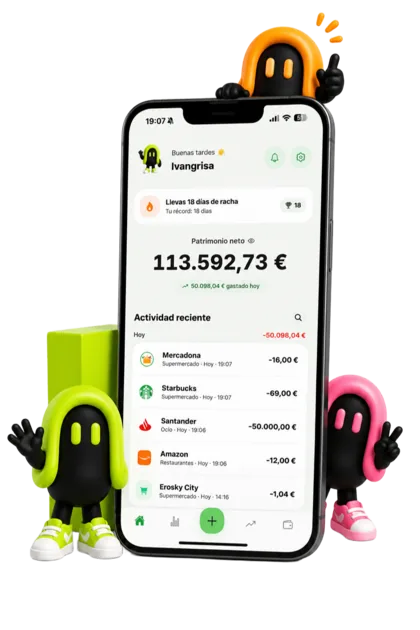
The bar at the bottom has four tabs and, in the middle, the + button for logging. The screenshot at the top is the Home screen.
Home
Greets you by your alias and shows your net worth, your streak of days logging and your latest transactions, with a magnifying glass to search them. A long press on the figure hides your balances.
Analytics
Income, spending and balance for the day, week, month or year, with the change against the previous period. The totals are free; the charts and the breakdown by category are PRO.
Investments PRO
Your portfolio with its current value and gain or loss, a chart by asset type and, at the bottom, how your net worth has changed over time.
How prices update. Automatically, but not in real time. Crypto refreshes every hour and when you open your portfolio; stocks and ETFs twice a day and when you open your portfolio; funds use their net asset value, which is published once a day.
Net worth over time PRO can be viewed by year or by month. Neto calculates the current period; you enter the earlier ones yourself, because the app doesn't take an automatic daily snapshot of your net worth.
Ways to log an expense
An expense log is only useful when it is complete, and it stays complete when logging takes less effort than paying. Neto gives you several ways to do it; pick the one that suits you.
With the + button
Amount, category, account and date (it can be a past day), plus a note if you like. Spending and income are unlimited on the free version. Neto's built-in categories are free; creating your own is PRO and is done in Settings > Finance > Categories or from the + in the category picker.
By tapping the back of your iPhone twice FREE iPhone
Tap the back of your phone twice and Neto asks what it was, the amount, the category and the account. It saves the expense without opening the app and confirms with a notification. You need iOS 17 or later, and you only set it up once:
- In Neto, go to Settings > Automation > Log expenses automatically and choose the double tap.
- In Apple's Shortcuts app, tap +, search for "Neto" and pick the action Registrar gasto (doble toque). Neto's actions appear in Spanish. Save the shortcut.
- In the iPhone's Settings: Accessibility > Touch > Back Tap > Double Tap, and choose that shortcut.
Automatic logging when you pay with Apple Pay PRO iPhone
You pay with a card in Wallet and the expense saves itself, to your main account and with a category worked out from the merchant. You need iOS 17 or later and a card in Wallet. It is on the same Settings screen, under the Apple Pay tab:
- In Shortcuts, go to Automation > New and pick Wallet as the trigger.
- Select your cards, turn on Run Immediately and turn off Notify When Run.
- Add the action Pago con Cartera → Neto (silencioso). Careful: not the double tap one, which doesn't work here.
- Link its two fields to Wallet's Amount and Merchant variables.
Automatic logging when you pay with Google Wallet PRO Android
In Settings > Automation > Add expenses automatically, tap Turn on and give Neto notification access. From then on, when you pay with your phone Neto reads only the Google Wallet payment notification (amount and merchant) and saves the expense. If you were offline, it is saved when you open Neto. It relies on Google Wallet sending that notification, and with some banks it doesn't: in that case the payment isn't captured.
By scanning the receipt PRO
On the add screen, Scan receipt: take a photo or pick one from your gallery and Neto fills in the expense. The receipt is read on your own phone (on iPhone and on Android) and the photo isn't stored.
Recurring transactions PRO
Rent, the gym, subscriptions or your salary: turn on the repeat option when you add the transaction, or go to Settings > Automation > Recurring transactions. Frequencies are daily, weekly, biweekly (every two weeks), monthly and yearly, and they are logged automatically each day. You can also schedule transfers between your accounts, such as what you move to savings each month: they don't count as spending or income.
Importing past months of transactions with AI PRO
If you want to start with months of transactions already in, there is no need to connect your bank. You download the statement from your bank's website or app, pass it to your AI (ChatGPT, Claude or Gemini) with a set of instructions, and it returns a CSV that Neto understands. It all lives in Settings > Finance > Import data:
- Download CSV template: a sample with the columns Date, Description, Category, Type, Account and Amount.
- Copy instructions for your AI: copies the text below, but with your real categories and accounts. Paste it into your AI along with the statement (PDF, Excel or CSV).
- Choose CSV file: pick the CSV your AI returns, check the preview (you can leave rows out and choose a default account) and import.
These are the instructions exactly as the app builds them with Neto's built-in categories. If you have created or renamed categories, or want the AI to fill in the account too, copy the version in the app, which already includes yours. With the app in Portuguese, French, German or Italian, the app gives you this English version.
I will attach my bank transactions (Excel, CSV or statement). Convert them EXACTLY to this CSV format, with no text before or after:

Date,Description,Category,Type,Account,Amount

Rules:
1. Date in YYYY-MM-DD format.
2. Description: clean merchant name (no POS codes or reference numbers).
3. Type: "Expense" or "Income". Amount: negative for expenses, positive for income, dot decimal separator, no currency symbol.
4. Category: use EXACTLY one of these names, do not invent or translate any (leave the cell empty if unsure).
   · For expenses: Food, Transport, Home, Leisure, Health, Clothing, Education, Subscriptions, Travel, Restaurants, Shopping, Utilities, Gifts, Pets, Other expenses
   · For income: Salary, Investments, Gifts received, Refunds, Freelance, Other income
5. Account: use EXACTLY one of these names if you know it. If you don't know which one a transaction belongs to, leave the cell empty.
6. If a field contains commas, wrap it in double quotes.
7. Do not invent transactions or change amounts. Skip rows that are not transactions (balances, totals, repeated headers).

Return only the CSV.
Worth knowing: Neto only accepts the CSV, not the PDF or Excel file directly. It takes up to 2,000 rows per import. The transactions go into your history and your analytics, but they don't change the current balance of your accounts. Each import can be undone in full. And your statement goes to your AI, not to Neto's servers: Neto only receives the CSV you have checked.
Analytics, budgets and everything else
Analytics
Free: choose day, week, month or year, go back in time, and see income, spending, balance and number of transactions with the percentage change against the previous period, plus the period's health (savings rate, average ticket, daily average and projection). PRO adds the detailed comparison, charts, fixed versus variable spending, your largest expenses, the categories that change most and the breakdown by category. Without PRO you will see that part with sample data.
Budgets FREE
In Settings > Finance > Budgets you set a limit per category, weekly, monthly or yearly, and you can carry what is left over into the next period. Neto alerts you at 80% and at 100%. If you don't know where to start, try the 50/30/20 rule or read about personal budgeting.
Savings goals FREE
In Settings > Finance > Savings goals you create pots with a target and add contributions over time. It alerts you at 50%, 75% and 100%. To work out how much to set aside, use the savings goal calculator; more ideas in savings goals.
Notifications
Turn them on in Settings > Notifications. They are sent within a sensible time window for your phone's time zone: the reminder on the last day of the month, in the morning; a heads-up two days before a recurring transaction; budget and goal alerts; and a nudge if you haven't logged anything for a few days.
Widgets FREE
Add them from your phone's home screen. On iPhone there are three, with Spanish names: Añadir rápido (quick add), Balance Neto (your balance with Neto's mascot and, if you have investments, the total invested) and Ingresos y Gastos (income and spending), which shows the weekly bars only with PRO. On Android there are three: balance with an add button, a compact one and a quick one. If your balances are hidden, the widgets don't show figures either.
Discreet mode and app lock FREE
To hide your balances, long-press your net worth on Home or go to Settings > Privacy > Hide balances. To make the app ask for Face ID or Touch ID when it opens, use Settings > Privacy > Face ID lock; on Android it is called Biometric lock and uses your fingerprint or face. If that fails, you can get in with your phone's passcode.
Currencies, languages and appearance
Neto supports 62 currencies; each account has its own and everything is converted into your main currency (explained in multi-currency). The app comes in Spanish, English, Portuguese, French, German and Italian: change the language in Settings > Preferences > Language. Settings > Preferences is also where you choose the theme (light, dark or system), whether to show your streak and, on iPhone with PRO, a different app icon.
Exporting, starting over and deleting your account
In Settings > Finance > Export data you download your transactions, accounts, investments or recurring transactions as CSV, for whatever date range you want: free, one export every 30 days; with PRO, unlimited. In Settings > Account, Start from scratch erases your data and keeps your account, and Delete my account erases everything and cannot be undone. If you are on PRO, cancel the subscription in the store as well: deleting your account doesn't cancel it. More in delete your account.
Privacy
- No bank connection. Neto doesn't connect to any bank, broker or exchange and never asks for their passwords. Investment prices come from public market data providers. We explain it in private finance without bank sync.
- What is stored. Your email (or your Apple or Google account; with Apple you can hide your email), your alias, what you record in the app (accounts, transactions, investments) and settings such as language, currency, time zone and the token used to send you notifications. We don't ask for your real name, ID number or bank details.
- How it is stored. Your data is kept on Neto's servers, which need it to calculate balances, analytics and alerts, and it travels encrypted between your phone and the server.
- What never leaves your phone. A receipt photo is read on the phone itself and isn't stored, and the statement you use for importing goes to your AI, not to Neto.
- How it is funded. The app has no ads and offers no loans: it is funded by the PRO subscription. To improve it we use product analytics with an internal identifier and no amounts.
All the details are in the privacy policy.
What is free and what is PRO
The free version covers your spending and your accounts in full. PRO adds investments, automation and in-depth analysis.
| Feature | Free | PRO |
|---|---|---|
| Spending and income | Unlimited | Unlimited |
| Accounts and transfers | Unlimited | Unlimited |
| Categories | Neto's own | Neto's and your own |
| Analytics | Totals and comparison with the previous period | Plus charts, categories, fixed and variable, largest expenses |
| Budgets and savings goals | Yes | Yes |
| Double tap (iPhone) | Yes | Yes |
| Widgets, discreet mode and Face ID or fingerprint | Yes | Yes |
| 62 currencies, 6 languages, light and dark mode | Yes | Yes |
| CSV export | Once every 30 days | Unlimited |
| Net worth on Home | Sum of your accounts | Accounts, investments and possessions, minus debts |
| Investments: stocks, ETFs, funds and crypto | No | Yes |
| Unlisted possessions and debts | No | Yes |
| Net worth over time | No | Yes |
| Recurring transactions and scheduled transfers | No | Yes |
| Automatic payments (Apple Pay or Google Wallet) | No | Yes |
| Receipt scanning | No | Yes |
| History import with AI | No | Yes |
| App icons (iPhone) | No | Yes |
Before you pay for PRO, the store shows you the price and, if a free trial is on offer at the time, its length and terms. Plans and prices are on the home page.
Frequently asked questions
Does Neto connect to my bank?
No. Neto doesn't connect to any bank, broker or exchange and doesn't ask for their passwords. You enter the balances and log the transactions yourself, by hand or with your phone's automatic features.
What can I do for free, and what needs PRO?
Free gives you unlimited spending, income and accounts, transfers, basic analytics, budgets, savings goals, the double tap on iPhone, widgets, discreet mode, Face ID or fingerprint lock and 62 currencies. PRO adds investments, possessions and debts, recurring transactions, automatic payments, receipt scanning, advanced analytics, your own categories and AI import.
Does Neto work the same on iPhone and Android?
Almost. It is the same app, but Apple sign-in, the double tap, automatic Apple Pay payments and alternative icons are iPhone only, and Google sign-in and automatic Google Wallet payments are Android only.
What if my fund, stock or crypto doesn't show up in the search?
Add it manually with its price; that price won't update on its own. Then write to hello@netoapp.es to ask us to add it to the catalogue.
Can I bring in transactions from previous months?
Yes, with PRO. In Settings, Import data, you copy a set of instructions for your AI, give it your statement and it returns a CSV that Neto imports. Up to 2,000 rows per import, without changing the current balance of your accounts.
Can I keep accounts in several currencies?
Yes. Each account can use any of the 62 currencies, and Neto converts totals into your main currency with exchange rates updated daily.
How do I delete my account?
In Settings, Account, Delete my account. Everything is erased and it cannot be undone. If you pay for PRO, cancel the subscription in the App Store or Google Play as well.
Prefer a walkthrough in a different voice? Jota's walkthrough (he works on Neto), in Spanish.